Sprache auswählen

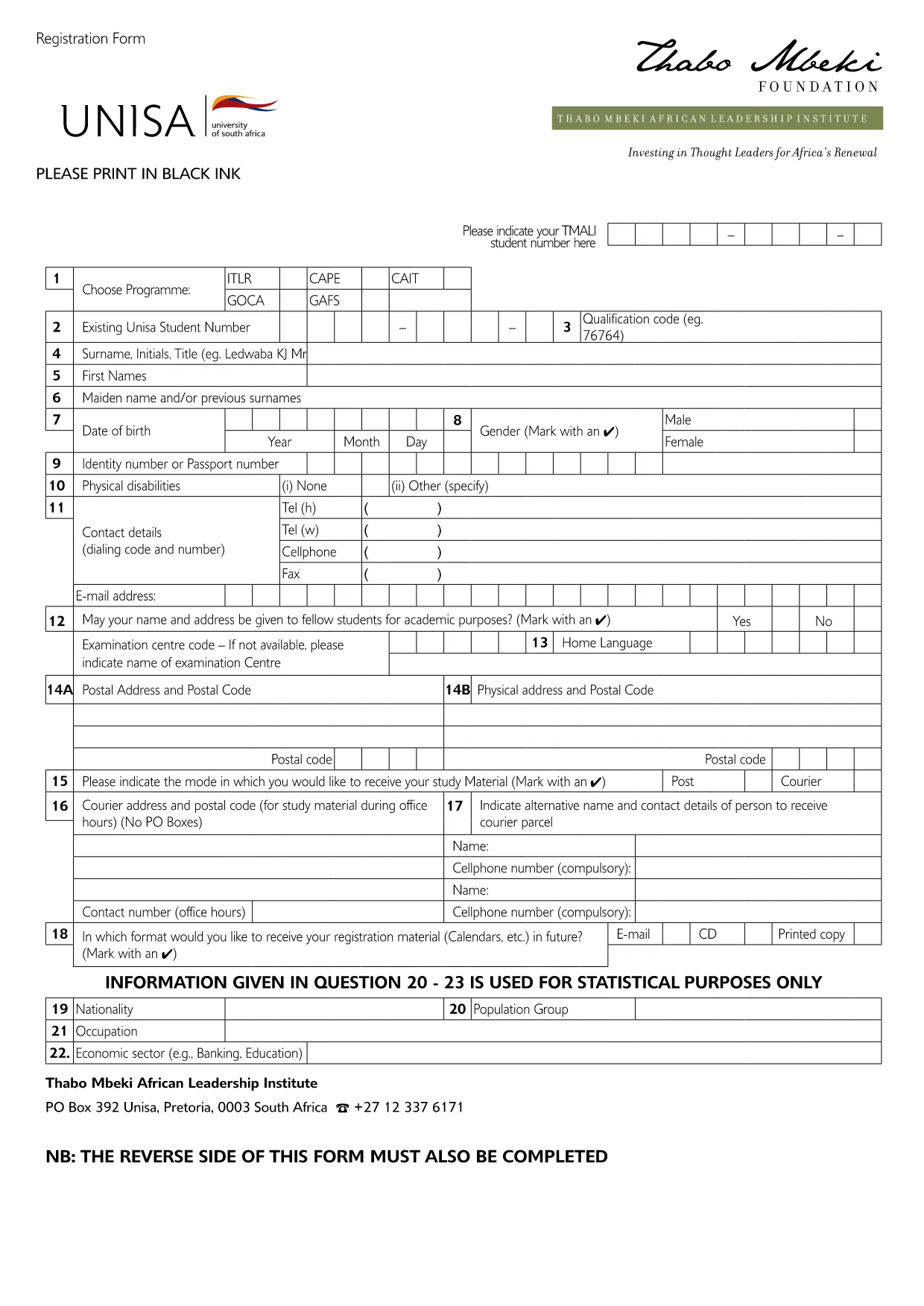
UNISA Application Form – Fillable PDF Online

  1. Land South Africa
  2. Sprache Englisch
  3. Aktivität Higher Education
  4. Abteilung Education
UNISA Application Form – Fillable PDF Online

Looking for the official UNISA application form for the 2027/2028 academic year? You’re in the right place. Our page offers a direct download of the fillable PDF and an instant online editor powered by Formize, so you can complete, save, and print the form without any extra software.

Why Use the Online Fillable UNISA Form

Filling out the UNISA registration PDF on paper can be time‑consuming and prone to errors. By using the online Formize PDF Filler you get:

  • Instant loading – no need to install a PDF editor.
  • Auto‑save while you type, preventing data loss.
  • Clear validation messages to avoid common mistakes.
  • One‑click download of the completed PDF for printing or electronic submission.

How to Complete the UNISA Application Form

Follow these simple steps to finish your application:

  1. Click the "Fill out this form" button below.
  2. Wait a few seconds while the Formize PDF Filler loads the UNISA application PDF.
  3. Review the pre‑filled sections (e.g., form title, instructions).
  4. Enter your personal details, academic history, and program choice.
  5. Upload supporting documents where required (optional – you can attach them later when submitting).
  6. Click Save to store a copy in your browser, then Download the completed PDF.
  7. Submit the saved PDF to UNISA via their online portal or by email as instructed on the form.

Required Documents and Common Mistakes

Before you start, gather the following documents to avoid delays:

  • Valid South African ID or passport (for international applicants).
  • Certified copies of your school qualification (e.g., National Senior Certificate).
  • Official tertiary academic records, if you have prior study.
  • Marriage certificate or divorce decree, if applicable.
  • Sworn translations for any non‑English documents.

Common mistakes to avoid:

  • Leaving mandatory fields blank – the filler will highlight them.
  • Using informal abbreviations (e.g., "St" instead of "Street").
  • Uploading non‑certified copies of required documents.
  • Submitting the form after the UNISA deadline.

Submit Your Application and Next Steps

Once you have downloaded the completed PDF, log in to the UNISA official portal and follow their submission guidelines. After submission, you will receive a confirmation email with a reference number. Keep this number handy for future correspondence.

Need help? Review the FAQs below or contact UNISA directly using the contact details on their website.

FAQ
  • Is the UNISA application form free to download?

    Yes, the PDF is provided at no cost. You can download and fill it online using Formize for free.

  • Can I edit the form after I have downloaded it?

    Absolutely. The Formize PDF Filler lets you make changes at any time before you save and download the final version.

  • What file format will I receive after completing the form?

    You will receive a standard fillable PDF that can be printed or submitted electronically.

  • Do I need Adobe Acrobat to fill the UNISA form?

    No. The Formize online filler works in any modern browser, so no additional software is required.

  • How do I know if my application has been accepted?

    After you submit the completed PDF through UNISA’s portal, you will receive a confirmation email with a reference number.

  • What if I make a mistake while filling the form?

    You can edit any field until you click the final "Download" button. Use the "Undo" option or simply re‑type the correct information.

  • Are there any size limits for uploaded supporting documents?

    UNISA typically allows files up to 5 MB each. Check the specific program’s guidelines for exact limits.

  • Can I save my progress and return later?

    Yes. Click the "Save" button to store a copy in your browser. When you return, click "Load" to continue where you left off.

WIE MAN

So füllen Sie UNISA application form kostenlos online in 5 einfachen Schritten aus:

  1. 1
    Click the Fill‑out Button
    Press the "Fill out this form" button on the page to launch the Formize PDF Filler.
  2. 2
    Wait for the PDF Filler to Load
    The fillable UNISA application PDF will appear in the browser within a few seconds.
  3. 3
    Enter Your Details
    Complete each required field, following the on‑screen prompts and validation messages.
  4. 4
    Save and Download
    Click "Save" to store your progress, then click "Download" to get the finished PDF.
  5. 5
    Submit to UNISA
    Upload the downloaded PDF via the UNISA online portal or send it by email as instructed.
Formize PDF Filler-App
ÜBER

UNISA application form-Vorlage

Mit den traditionellen Funktionen zum Anzeigen und Ausfüllen eines PDF-Dokuments, kombiniert mit den Vorteilen einer Webanwendung und einem ansprechenden Layout, können Sie UNISA application form in wenigen Minuten fertigstellen.

MERKMALE

PDF-Filler

Der einfachste Weg, PDF-Formulare online auszufüllen

  • Füllen Sie schnell UNISA application form aus
    Suchen Sie nach einer Möglichkeit, UNISA application form schnell online auszufüllen? Mit unserem kostenlosen Online-PDF-Formularausfüller wissen Sie, wie Sie dieses PDF-Dokument in weniger als einer Minute bearbeiten und ausfüllen.
  • Einfach zu bedienender Online-PDF-Editor
    Haben Sie es satt, PDF-Dateien auszudrucken, damit Sie sie bearbeiten können, bevor Sie sie erneut scannen und zurücksenden? PDF-Dokumente kostenlos online bearbeiten. Nutzen Sie unseren Online-PDF-Editor, um Zeit und Papier zu sparen.
  • Tolle Tools, alle Plattformen
    Sie fragen sich, wie Sie UNISA application form auf einem Mac ausfüllen oder vielleicht einen kostenlosen PDF-Ausfüller verwenden können? Unsere Online-PDF-Tools funktionieren auf allen Plattformen.
  • Sichere Dateispeicherung
    Fertige "UNISA application form"-Dateien werden in einer gesicherten Datenbank gespeichert, die vom Amazon Cloud-Hosting verwaltet wird. Sie können Ihre Dateien jederzeit aus unserem System löschen. In jedem Fall werden diese Dateien nach 24 Stunden automatisch gelöscht.
  • Chatten Sie mit UNISA application form
    Chatten Sie mit „UNISA application form“ auf Chatize, einem kostenlosen PDF-Leseassistenten. Stellen Sie Fragen und erhalten Sie Antworten von „UNISA application form“. Klicken Sie einfach oben auf die Schaltfläche Mit Dokument chatten.

Füllsitzung löschen

Die ausgewählte Füllsitzung löschen? In diesem Fall gehen Ihre Fortschritte beim Ausfüllen des Formulars verloren.

Bearbeitungssitzung löschen

Ausgewählte Bearbeitungssitzung löschen? In diesem Fall geht Ihr Fortschritt beim Erstellen und Bearbeiten des Formulars verloren.