Izaberi jezik

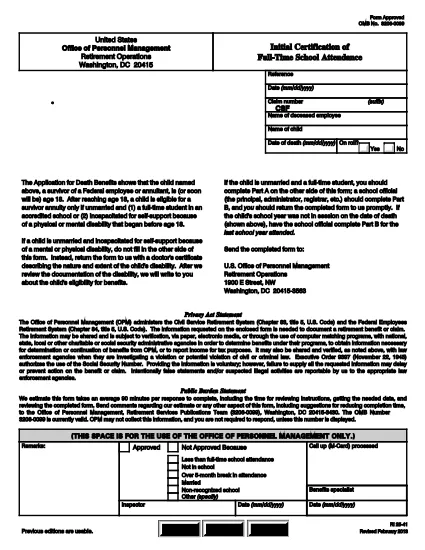
RI 25‑41 Fillable PDF – Initial Certification of Full‑Time School Attendance

  1. Zemlja SAD
  2. Jezik Engleski
  3. Odjel Ured za upravljanje osobljem
  4. Sektor Obrasci za mirovinu i osiguranje
RI 25‑41 Fillable PDF – Initial Certification of Full‑Time School Attendance

The RI 25‑41 is the federal “Initial Certification of Full‑Time School Attendance” used by the Office of Personnel Management (OPM) to verify a student’s eligibility for federal education benefits. This form is required for each school year and must be completed by both the payee (the student’s parent or guardian) and an official of the educational institution.

What Is the RI 25‑41 Form?

RI 25‑41 collects detailed information about the student’s enrollment, the school’s accreditation, and the anticipated dates of attendance. Part A is filled out by the payee, while Part B is completed by a school official. The form must be signed and returned to OPM before benefits are paid.

How to Fill Out RI 25‑41 Online with Formize

Instead of printing, scanning, or editing the PDF in a separate program, you can fill the form directly on our site. Follow the simple steps below:

  1. Click the “Fill out this form” button on the page.
  2. Wait a few seconds while the Formize PDF Filler app loads the fillable RI 25‑41 document.
  3. Enter your information in each field. Use the TAB key to jump between fields.
  4. When all required fields are completed, click Save & Download to get a copy of the completed PDF.
  5. Print the signed copy (if a signature is required) and submit it to OPM as instructed.

Key Sections & Common Mistakes to Avoid

  • Part A – Payee Information: Double‑check the Social Security Number and date of birth; a typo will delay processing.
  • Part B – School Official: Ensure the official’s title and phone number are current; OPM may contact them for verification.
  • Attendance Dates: Use the exact start and end dates of the academic term. Do not leave blanks.
  • Signatures: Electronic signatures are accepted only if the PDF is printed, signed, and scanned back. The online filler does not replace a handwritten signature where required.
  • Attachments: If the school requires additional documentation (e.g., enrollment verification), attach those files before downloading the final PDF.

Where to Submit the Completed Form

After saving the completed RI 25‑41, mail or fax the signed PDF to the address listed on the OPM website. For most federal employees, the preferred method is to upload the PDF to the OPM portal under “Retirement & Insurance Forms.”

Need a printable version? Use the direct download link below.

PITANJA
  • Can I submit the RI 25‑41 electronically?

    Yes. After completing the form in the Formize filler, you can download the PDF and upload it to the OPM portal. If a signature is required, print, sign, and scan the document before uploading.

  • Who can fill out Part B of the form?

    Part B must be completed by an authorized official of the educational institution, such as the registrar or dean.

  • What happens if I make a mistake on the form?

    Incorrect or missing information can delay benefit payments. Review all entries carefully and correct any errors before submitting.

  • Do I need to attach proof of enrollment?

    OPM may request additional enrollment verification. Attach any required documents before downloading the final PDF.

  • Is the RI 25‑41 form still valid for 2024‑2025 school years?

    Yes. The RI 25‑41 form is the current version for all upcoming school years unless OPM announces a revision.

  • How long does it take for OPM to process the form?

    Processing typically takes 10‑14 business days after receipt of a complete and signed form.

KAKO DA

Kako ispuniti RI 25-41 besplatno, online u 4 jednostavnih koraka:

  1. 1
    Open the Fillable Form
    Click the “Fill out this form” button on this page. The Formize PDF Filler will open the RI 25‑41 document automatically.
  2. 2
    Enter Your Information
    Type directly into each field. Use TAB to move to the next field. All required fields are marked with an asterisk.
  3. 3
    Save and Download
    When you’re finished, click “Save & Download” to get a copy of the completed PDF. Print and sign if a handwritten signature is required.
  4. 4
    Submit to OPM
    Mail, fax, or upload the signed PDF to the OPM portal as instructed in the form’s instructions.
Aplikacija Formize PDF Filler
OKO

Obrasci Ureda za upravljanje osobljem (OPM).

RI 25-41 jedan je od službenih obrazaca koje koristi Ured za upravljanje osobljem Sjedinjenih Država, neovisna agencija savezne vlade odgovorna za upravljanje radnom snagom u državnoj službi i beneficijama saveznih zaposlenika. OPM utvrđuje politike i propise koji se odnose na savezno zapošljavanje, upravlja različitim kadrovskim programima i pruža usluge saveznim zaposlenicima, umirovljenicima i kandidatima za posao.

Evo nekoliko primjera obrazaca Ureda za upravljanje osobljem:

Standardni obrazac 86 (SF-86) : Ovaj se obrazac koristi za proces istrage pojedinaca koji se prijavljuju za sigurnosnu provjeru. Prikuplja sveobuhvatne osobne podatke, podatke o zapošljavanju, obrazovanju i financijske podatke, kao i detalje o inozemnim kontaktima i aktivnostima.

Standardni obrazac 2809 (SF-2809) : Ovaj se obrazac koristi za upis u program Federal Employees Health Benefits (FEHB), koji osigurava zdravstveno osiguranje federalnim zaposlenicima, umirovljenicima i članovima njihovih obitelji koji ispunjavaju uvjete.

Standardni obrazac 2817 (SF-2817): Ovaj se obrazac koristi za podnošenje zahtjeva za nastavak osiguranja prema Federalnom programu osiguranja zuba i vida (FEDVIP) nakon umirovljenja ili odvajanja od savezne službe.

Standardni obrazac 3107 (SF-3107) : Ovaj se obrazac koristi za podnošenje zahtjeva za mirovinu prema Sustavu mirovina za državnu službu (CSRS).

Standardni obrazac 2801 (SF-2801) : Ovaj obrazac se koristi za podnošenje zahtjeva za mirovinu prema Federal Employees Retirement System (FERS).

Standardni obrazac 15 (SF-15) : Ovaj se obrazac koristi za podnošenje zahtjeva za veteransku prednost pri saveznom zapošljavanju. Podnose ga veterani ili njihovi kvalificirani članovi obitelji koji traže priliku za zapošljavanje u saveznoj vladi.

Ovi primjeri predstavljaju neke uobičajene OPM obrasce koji se koriste u kontekstu saveznog zapošljavanja i beneficija zaposlenika. Međutim, OPM ima niz drugih oblika povezanih s raznim kadrovskim programima, mirovinom, osiguranjem i drugim aspektima saveznog zapošljavanja. Specifični potrebni obrasci mogu varirati ovisno o prirodi transakcije, programa ili pogodnosti koje se traže. Preporučljivo je konzultirati službenu web stranicu Ureda za upravljanje osobljem SAD-a (www.opm.gov) ili potražiti smjernice od OPM-a ili relevantnog osoblja za ljudske resurse kako biste dobili točne i up- najnovije informacije u vezi s određenim OPM obrascima koji su relevantni za vaše potrebe vezane uz savezno zapošljavanje ili naknade.

ZNAČAJKE

PDF punilo

Najlakši način da ispunite RI 25-41 online

  • Brzo ispunite RI 25-41
    Tražite način da brzo ispunite RI 25-41 online? Uz naš online besplatni PDF obrazac za popunjavanje, znat ćete kako urediti i ispuniti ovaj pdf dokument za manje od minute.
  • Jednostavan za korištenje mrežni PDF uređivač
    Dosta vam je ispisivanja PDF datoteka kako biste ih mogli uređivati ​​prije ponovnog skeniranja i slanja natrag? Uređujte PDF dokumente besplatno na mreži. Upotrijebite naš online uređivač pdf-ova kako biste uštedjeli vrijeme i papir.
  • Sjajni alati, sve platforme
    Pitate se kako ispuniti RI 25-41 na Macu ili možda kako koristiti PDF filer besplatno? Naši online PDF alati rade na svim platformama.
  • Sigurno skladištenje datoteka
    Dovršene datoteke "RI 25-41" pohranjuju se u zaštićenu bazu podataka kojom upravlja Amazon Cloud hosting. Svoje datoteke možete izbrisati iz našeg sustava bilo kada. U svakom slučaju, te se datoteke automatski brišu nakon 24 sata.
  • Chat s RI 25-41
    Razgovarajte s "RI 25-41" na Chatize koji je besplatni pomoćnik za čitanje PDF-ova. Postavljajte pitanja i dobivajte odgovore od "RI 25-41". Samo kliknite gornji gumb Chat with Document.

Izbriši sesiju punjenja

Izbrisati odabranu sesiju punjenja? U tom će slučaju vaš napredak u ispunjavanju obrasca biti izgubljen.

Izbriši sesiju uređivanja

Izbrisati odabranu sesiju uređivanja? U tom će slučaju vaš napredak u stvaranju i uređivanju obrasca biti izgubljen.