言語を選択する

UNISA Application Form – Fillable PDF Online

  1. South Africa
  2. 言語 英語
  3. アクティビティ Higher Education
  4. デパートメント Education
UNISA Application Form – Fillable PDF Online

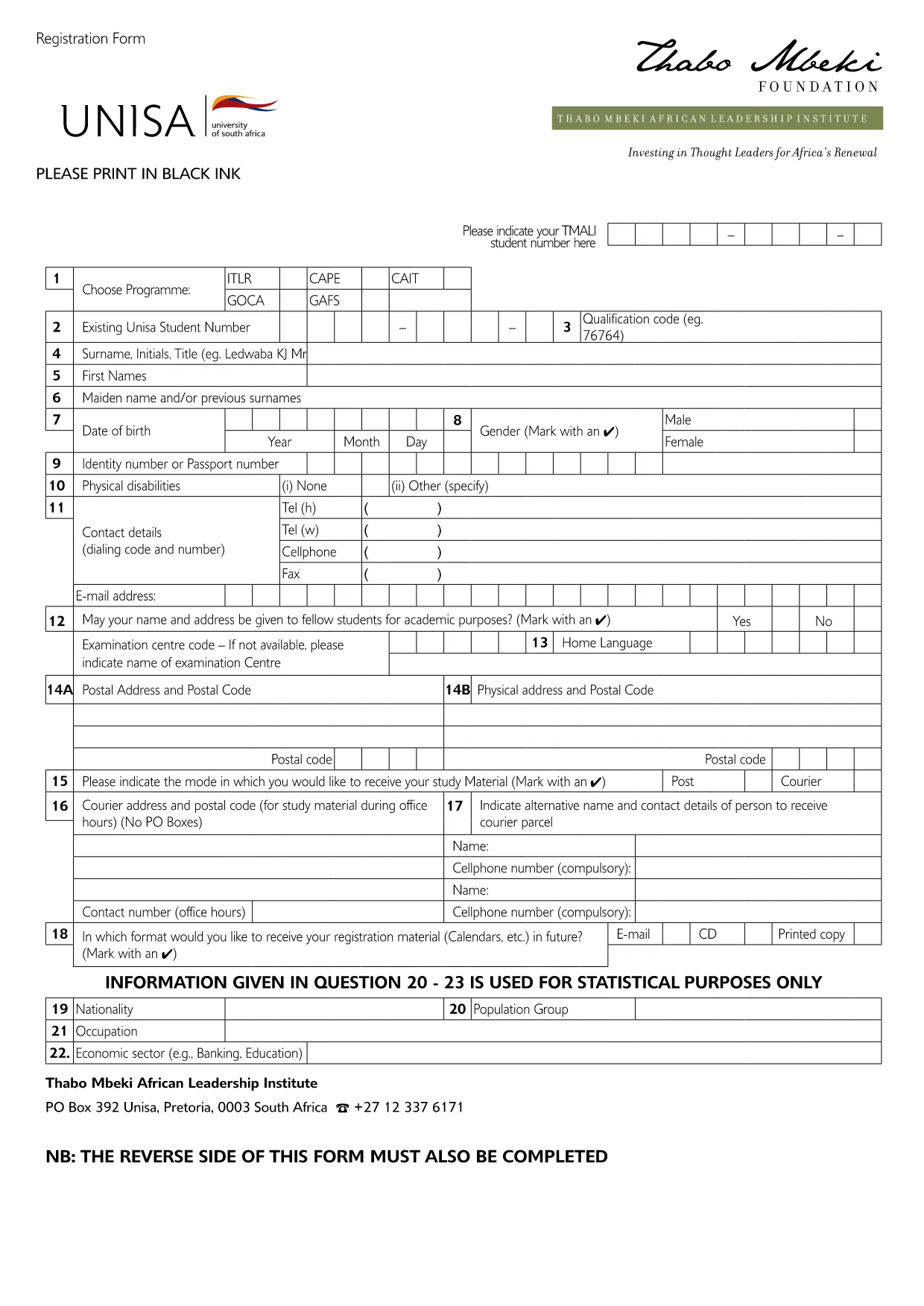
Looking for the official UNISA application form for the 2027/2028 academic year? You’re in the right place. Our page offers a direct download of the fillable PDF and an instant online editor powered by Formize, so you can complete, save, and print the form without any extra software.

Why Use the Online Fillable UNISA Form

Filling out the UNISA registration PDF on paper can be time‑consuming and prone to errors. By using the online Formize PDF Filler you get:

  • Instant loading – no need to install a PDF editor.
  • Auto‑save while you type, preventing data loss.
  • Clear validation messages to avoid common mistakes.
  • One‑click download of the completed PDF for printing or electronic submission.

How to Complete the UNISA Application Form

Follow these simple steps to finish your application:

  1. Click the "Fill out this form" button below.
  2. Wait a few seconds while the Formize PDF Filler loads the UNISA application PDF.
  3. Review the pre‑filled sections (e.g., form title, instructions).
  4. Enter your personal details, academic history, and program choice.
  5. Upload supporting documents where required (optional – you can attach them later when submitting).
  6. Click Save to store a copy in your browser, then Download the completed PDF.
  7. Submit the saved PDF to UNISA via their online portal or by email as instructed on the form.

Required Documents and Common Mistakes

Before you start, gather the following documents to avoid delays:

  • Valid South African ID or passport (for international applicants).
  • Certified copies of your school qualification (e.g., National Senior Certificate).
  • Official tertiary academic records, if you have prior study.
  • Marriage certificate or divorce decree, if applicable.
  • Sworn translations for any non‑English documents.

Common mistakes to avoid:

  • Leaving mandatory fields blank – the filler will highlight them.
  • Using informal abbreviations (e.g., "St" instead of "Street").
  • Uploading non‑certified copies of required documents.
  • Submitting the form after the UNISA deadline.

Submit Your Application and Next Steps

Once you have downloaded the completed PDF, log in to the UNISA official portal and follow their submission guidelines. After submission, you will receive a confirmation email with a reference number. Keep this number handy for future correspondence.

Need help? Review the FAQs below or contact UNISA directly using the contact details on their website.

よくある質問
  • Is the UNISA application form free to download?

    Yes, the PDF is provided at no cost. You can download and fill it online using Formize for free.

  • Can I edit the form after I have downloaded it?

    Absolutely. The Formize PDF Filler lets you make changes at any time before you save and download the final version.

  • What file format will I receive after completing the form?

    You will receive a standard fillable PDF that can be printed or submitted electronically.

  • Do I need Adobe Acrobat to fill the UNISA form?

    No. The Formize online filler works in any modern browser, so no additional software is required.

  • How do I know if my application has been accepted?

    After you submit the completed PDF through UNISA’s portal, you will receive a confirmation email with a reference number.

  • What if I make a mistake while filling the form?

    You can edit any field until you click the final "Download" button. Use the "Undo" option or simply re‑type the correct information.

  • Are there any size limits for uploaded supporting documents?

    UNISA typically allows files up to 5 MB each. Check the specific program’s guidelines for exact limits.

  • Can I save my progress and return later?

    Yes. Click the "Save" button to store a copy in your browser. When you return, click "Load" to continue where you left off.

方法

オンラインで 5 回の簡単なステップで UNISA application form を無料で入力する方法:

  1. 1
    Click the Fill‑out Button
    Press the "Fill out this form" button on the page to launch the Formize PDF Filler.
  2. 2
    Wait for the PDF Filler to Load
    The fillable UNISA application PDF will appear in the browser within a few seconds.
  3. 3
    Enter Your Details
    Complete each required field, following the on‑screen prompts and validation messages.
  4. 4
    Save and Download
    Click "Save" to store your progress, then click "Download" to get the finished PDF.
  5. 5
    Submit to UNISA
    Upload the downloaded PDF via the UNISA online portal or send it by email as instructed.
Formize PDF Filler アプリ
だいたい

UNISA application form テンプレート

PDF ドキュメントを表示および入力するための従来の一連の機能に、Web アプリケーションおよびレスポンシブ レイアウトの利点を組み合わせることで、数分で UNISA application form を完成させることができます。
特徴

PDFフィラー

オンラインで PDF フォームに記入する最も簡単な方法

  • UNISA application form をすばやく入力してください
    UNISA application form をオンラインですばやく入力する方法をお探しですか?オンラインの無料 PDF フォーム フィラーを使用すると、この PDF ドキュメントを 1 分以内に編集して入力する方法がわかります。
  • 使いやすいオンライン PDF エディター
    再スキャンして返送する前に、編集できるように PDF ファイルを印刷することにうんざりしていませんか? PDFドキュメントをオンラインで無料で編集.当社のオンライン PDF エディターを使用して、時間と紙を節約してください。
  • 優れたツール、すべてのプラットフォーム
    Mac で UNISA application form を入力する方法や、PDF フィラーを無料で使用する方法を知りたいですか?当社のオンライン PDF ツールは、すべてのプラットフォームで動作します。
  • 安全なファイル ストレージ
    完成した「UNISA application form」ファイルは、Amazon クラウド ホスティングが管理する安全なデータベースに保存されます。いつでもシステムからファイルを削除できます。いずれにせよ、これらのファイルは 24 時間後に自動的に削除されます。
  • {キーワード} とチャットする
    無料の PDF リーダー アシスタントである Chatize で「UNISA application form」とチャットします。質問すると、「UNISA application form」から回答が得られます。上の [ドキュメントとチャット] ボタンをクリックするだけです。

フィルセッションを削除

選択したフィルセッションを削除しますか?この場合、フォームへの記入の進捗状況は失われます。

編集セッションを削除する

選択した編集セッションを削除しますか?この場合、フォームの作成および編集の進行状況は失われます。