言語を選択する

USPS Post Office Application Form (Fillable PDF)

  1. 言語 英語
  2. 国 アメリカ合衆国
  3. アクティビティ Employment
  4. デパートメント USPS
USPS Post Office Application Form (Fillable PDF)

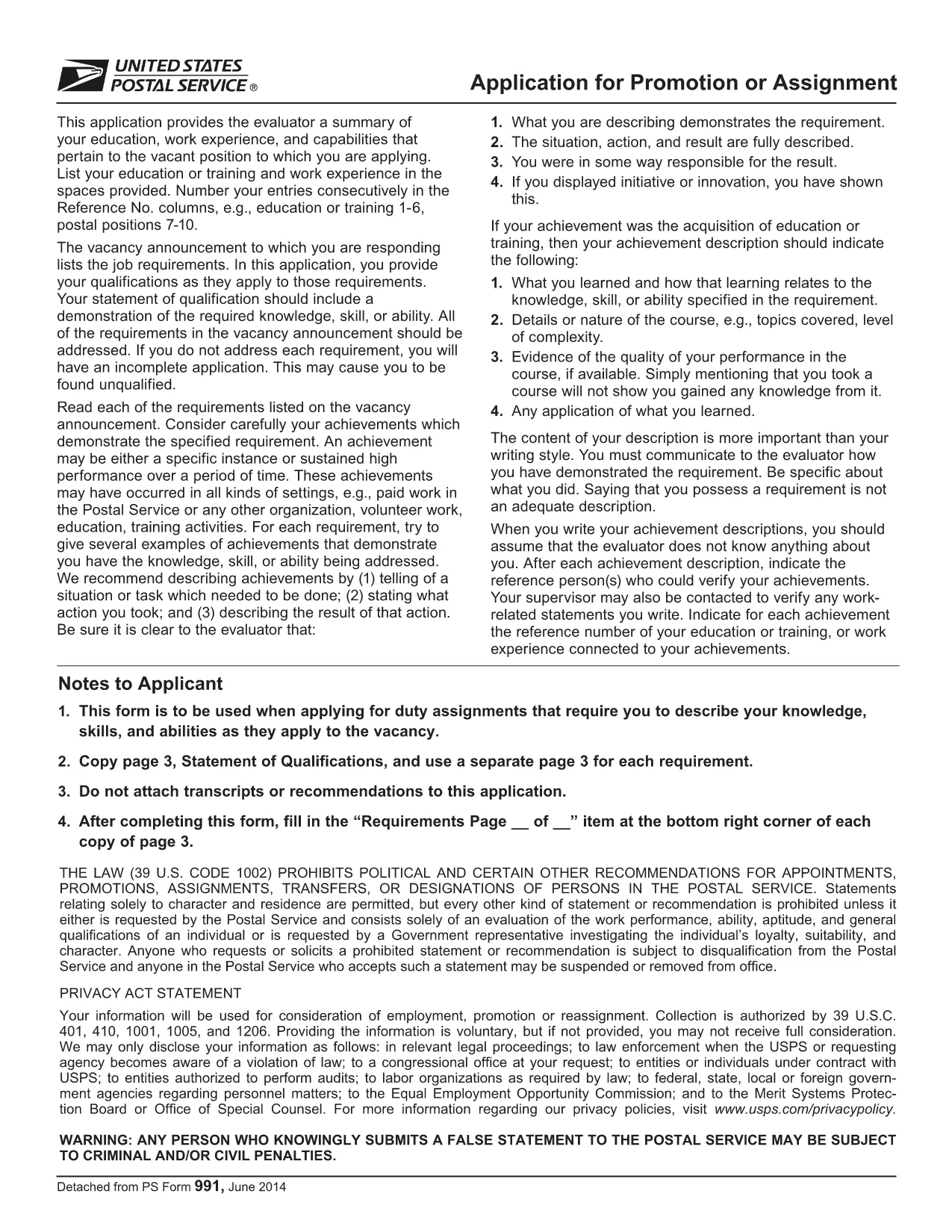
Applying for a position, promotion, or assignment with the United States Postal Service (USPS) starts with the official PS‑991 Application Form. Instead of printing, scanning, or hand‑writing, you can fill the form instantly online using Formize’s secure PDF filler.

Why Use the Fillable PDF Form?

  • Fast loading – the form opens in seconds.
  • Auto‑save feature prevents lost data.
  • Built‑in validation reduces errors.
  • Direct download of the official USPS PDF (PS‑991).

How to Complete the USPS Application Online

Follow the simple steps below to finish your application without leaving the page.

Common Mistakes to Avoid

  • Leaving required fields blank – the filler will highlight them.
  • Using an outdated version of the form – always use the latest PDF linked below.
  • Submitting without reviewing – use the “Preview” button to double‑check.

Download the Official PDF

The PDF you will fill out is the exact form provided by USPS. Click the button below to launch the Formize PDF Filler and start editing instantly.

FAQs About the USPS Application

Find quick answers to the most common questions below. If you need more help, refer to the official USPS instructions.

よくある質問
  • Is the PS‑991 form only for current USPS employees?

    Yes, PS‑991 is intended for current USPS employees applying for promotions, reassignments, or special duties.

  • Can I edit the PDF on a mobile device?

    The Formize PDF Filler works on most smartphones and tablets. For the best experience, use a desktop browser.

  • Do I need Adobe Acrobat to fill the form?

    No. The fillable version runs entirely in your web browser via Formize’s secure PDF filler.

  • What if I make a mistake after saving?

    Open the saved PDF again with the Formize filler, edit the needed fields, and re‑save.

  • Is my personal data safe while using the filler?

    Yes. Formize uses SSL encryption, and the PDF never leaves your browser unless you choose to download or submit it.

  • Do I need to print the form before submitting?

    Most USPS hiring portals accept a PDF upload. Print only if the specific posting requires a hard copy.

  • How often is the PS‑991 form updated?

    USPS updates the form as needed. The link on this page always points to the latest version.

方法

オンラインで 5 回の簡単なステップで USPS application form を無料で入力する方法:

  1. 1
    Click “Fill out this form”
    Press the button on this page to open the Formize PDF Filler with the PS‑991 PDF loaded.
  2. 2
    Wait for the filler to load
    The app loads in a few seconds; you’ll see the form fields become editable.
  3. 3
    Enter your information
    Type directly into each field. Required fields are marked with an asterisk and validated in real time.
  4. 4
    Review and save
    Use the “Preview” button to check all entries, then click “Save” to download a completed copy.
  5. 5
    Submit to USPS
    Print the saved PDF or attach it to your online USPS job portal submission as instructed by the hiring manager.
Formize PDF Filler アプリ
だいたい

USPS application form テンプレート

PDF ドキュメントを表示および入力するための従来の一連の機能に、Web アプリケーションおよびレスポンシブ レイアウトの利点を組み合わせることで、数分で USPS application form を完成させることができます。
特徴

PDFフィラー

オンラインで PDF フォームに記入する最も簡単な方法

  • USPS application form をすばやく入力してください
    USPS application form をオンラインですばやく入力する方法をお探しですか?オンラインの無料 PDF フォーム フィラーを使用すると、この PDF ドキュメントを 1 分以内に編集して入力する方法がわかります。
  • 使いやすいオンライン PDF エディター
    再スキャンして返送する前に、編集できるように PDF ファイルを印刷することにうんざりしていませんか? PDFドキュメントをオンラインで無料で編集.当社のオンライン PDF エディターを使用して、時間と紙を節約してください。
  • 優れたツール、すべてのプラットフォーム
    Mac で USPS application form を入力する方法や、PDF フィラーを無料で使用する方法を知りたいですか?当社のオンライン PDF ツールは、すべてのプラットフォームで動作します。
  • 安全なファイル ストレージ
    完成した「USPS application form」ファイルは、Amazon クラウド ホスティングが管理する安全なデータベースに保存されます。いつでもシステムからファイルを削除できます。いずれにせよ、これらのファイルは 24 時間後に自動的に削除されます。
  • {キーワード} とチャットする
    無料の PDF リーダー アシスタントである Chatize で「USPS application form」とチャットします。質問すると、「USPS application form」から回答が得られます。上の [ドキュメントとチャット] ボタンをクリックするだけです。

フィルセッションを削除

選択したフィルセッションを削除しますか?この場合、フォームへの記入の進捗状況は失われます。

編集セッションを削除する

選択した編集セッションを削除しますか?この場合、フォームの作成および編集の進行状況は失われます。