언어 선택

UNISA Application Form – Fillable PDF Online

  1. 국가 South Africa
  2. 언어 영어
  3. 활동 Higher Education
  4. 부서 Education
UNISA Application Form – Fillable PDF Online

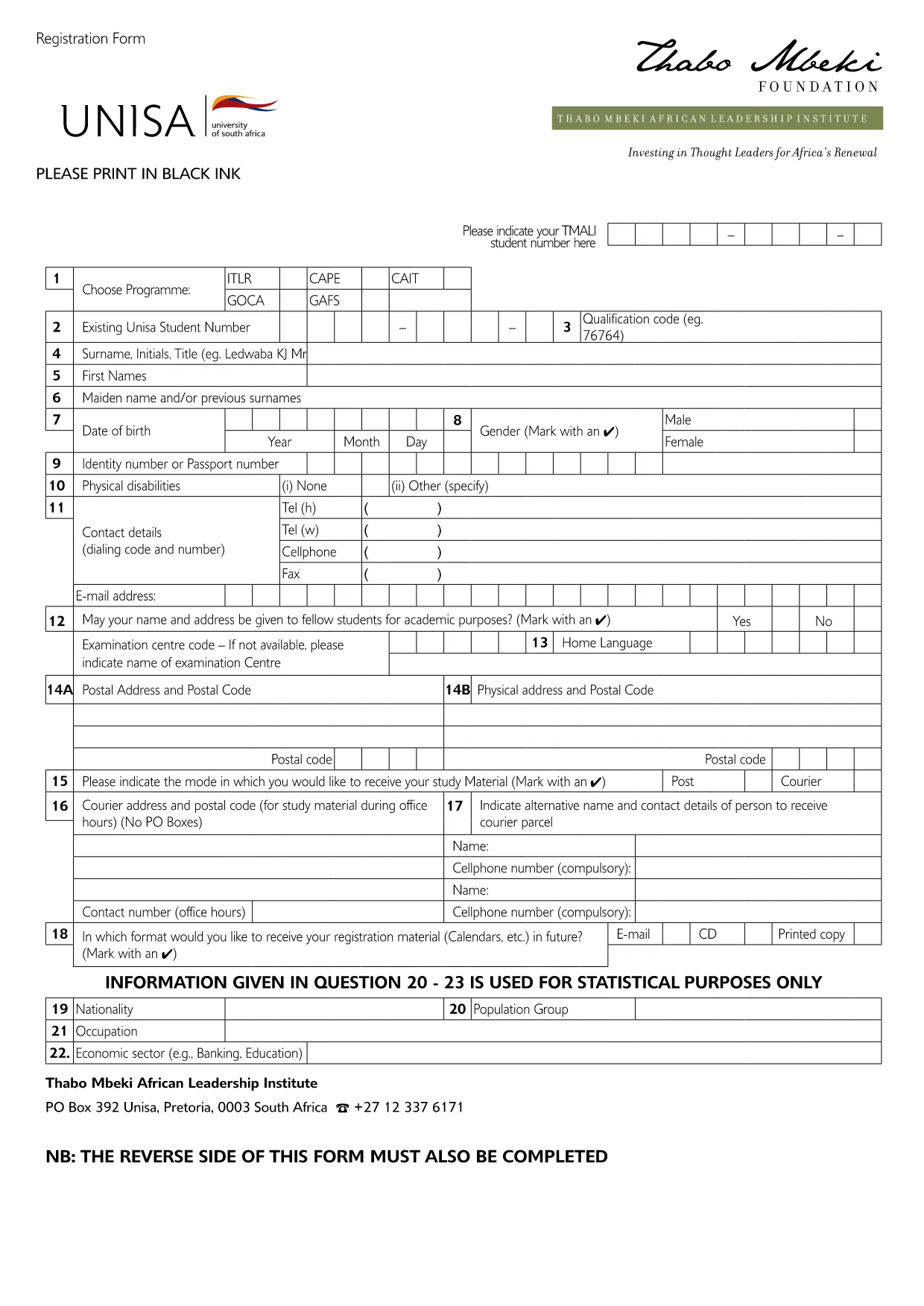
Looking for the official UNISA application form for the 2027/2028 academic year? You’re in the right place. Our page offers a direct download of the fillable PDF and an instant online editor powered by Formize, so you can complete, save, and print the form without any extra software.

Why Use the Online Fillable UNISA Form

Filling out the UNISA registration PDF on paper can be time‑consuming and prone to errors. By using the online Formize PDF Filler you get:

  • Instant loading – no need to install a PDF editor.
  • Auto‑save while you type, preventing data loss.
  • Clear validation messages to avoid common mistakes.
  • One‑click download of the completed PDF for printing or electronic submission.

How to Complete the UNISA Application Form

Follow these simple steps to finish your application:

  1. Click the "Fill out this form" button below.
  2. Wait a few seconds while the Formize PDF Filler loads the UNISA application PDF.
  3. Review the pre‑filled sections (e.g., form title, instructions).
  4. Enter your personal details, academic history, and program choice.
  5. Upload supporting documents where required (optional – you can attach them later when submitting).
  6. Click Save to store a copy in your browser, then Download the completed PDF.
  7. Submit the saved PDF to UNISA via their online portal or by email as instructed on the form.

Required Documents and Common Mistakes

Before you start, gather the following documents to avoid delays:

  • Valid South African ID or passport (for international applicants).
  • Certified copies of your school qualification (e.g., National Senior Certificate).
  • Official tertiary academic records, if you have prior study.
  • Marriage certificate or divorce decree, if applicable.
  • Sworn translations for any non‑English documents.

Common mistakes to avoid:

  • Leaving mandatory fields blank – the filler will highlight them.
  • Using informal abbreviations (e.g., "St" instead of "Street").
  • Uploading non‑certified copies of required documents.
  • Submitting the form after the UNISA deadline.

Submit Your Application and Next Steps

Once you have downloaded the completed PDF, log in to the UNISA official portal and follow their submission guidelines. After submission, you will receive a confirmation email with a reference number. Keep this number handy for future correspondence.

Need help? Review the FAQs below or contact UNISA directly using the contact details on their website.

자주하는 질문
  • Is the UNISA application form free to download?

    Yes, the PDF is provided at no cost. You can download and fill it online using Formize for free.

  • Can I edit the form after I have downloaded it?

    Absolutely. The Formize PDF Filler lets you make changes at any time before you save and download the final version.

  • What file format will I receive after completing the form?

    You will receive a standard fillable PDF that can be printed or submitted electronically.

  • Do I need Adobe Acrobat to fill the UNISA form?

    No. The Formize online filler works in any modern browser, so no additional software is required.

  • How do I know if my application has been accepted?

    After you submit the completed PDF through UNISA’s portal, you will receive a confirmation email with a reference number.

  • What if I make a mistake while filling the form?

    You can edit any field until you click the final "Download" button. Use the "Undo" option or simply re‑type the correct information.

  • Are there any size limits for uploaded supporting documents?

    UNISA typically allows files up to 5 MB each. Check the specific program’s guidelines for exact limits.

  • Can I save my progress and return later?

    Yes. Click the "Save" button to store a copy in your browser. When you return, click "Load" to continue where you left off.

어떻게

5개의 간단한 단계를 통해 온라인으로 UNISA application form를 무료로 작성하는 방법:

  1. 1
    Click the Fill‑out Button
    Press the "Fill out this form" button on the page to launch the Formize PDF Filler.
  2. 2
    Wait for the PDF Filler to Load
    The fillable UNISA application PDF will appear in the browser within a few seconds.
  3. 3
    Enter Your Details
    Complete each required field, following the on‑screen prompts and validation messages.
  4. 4
    Save and Download
    Click "Save" to store your progress, then click "Download" to get the finished PDF.
  5. 5
    Submit to UNISA
    Upload the downloaded PDF via the UNISA online portal or send it by email as instructed.
Formize PDF 필러 앱
에 대한

{키워드} 템플릿

PDF 문서를 보고 작성하기 위한 기존 기능 세트와 웹 애플리케이션 및 반응형 레이아웃의 이점을 결합하면 몇 분 만에 UNISA application form을(를) 완료할 수 있습니다.
특징

PDF 필러

온라인에서 PDF 양식을 채우는 가장 쉬운 방법

  • UNISA application form를 빠르게 작성하세요.
    온라인에서 UNISA application form을(를) 빠르게 채우는 방법을 찾고 계십니까? 온라인 무료 PDF 양식 필러를 사용하면 1분 이내에 이 PDF 문서를 편집하고 채우는 방법을 알 수 있습니다.
  • 사용하기 쉬운 온라인 PDF 편집기
    다시 스캔하여 다시 보내기 전에 편집할 수 있도록 PDF 파일을 인쇄하는 데 지쳤습니까? 온라인에서 무료로 PDF 문서를 편집하세요. 온라인 PDF 편집기를 사용하여 시간과 종이를 절약하십시오.
  • 훌륭한 도구, 모든 플랫폼
    Mac에서 UNISA application form를 채우는 방법이나 PDF 필러를 무료로 사용하는 방법이 궁금하십니까? 당사의 온라인 PDF 도구는 모든 플랫폼에서 작동합니다.
  • 안전한 파일 저장
    완료된 "UNISA application form" 파일은 Amazon 클라우드 호스팅에서 관리하는 보안 데이터베이스에 저장됩니다. 언제든지 시스템에서 파일을 삭제할 수 있습니다. 어쨌든 이러한 파일은 24시간 후에 자동으로 삭제됩니다.
  • UNISA application form님과 채팅
    무료 PDF 리더 도우미인 Chatize에서 "UNISA application form"와 채팅하세요. "UNISA application form"에서 질문하고 답변을 받으세요. 위의 문서와 채팅 버튼을 클릭하세요.

필링 세션 삭제

선택한 필링 세션을 삭제하시겠습니까?이 경우 양식 작성 진행 상황이 손실됩니다.

편집 세션 삭제

선택한 편집 세션을 삭제하시겠습니까? 이 경우 양식 작성 및 편집 진행 상황이 손실됩니다.