Pasirinkite kalbą

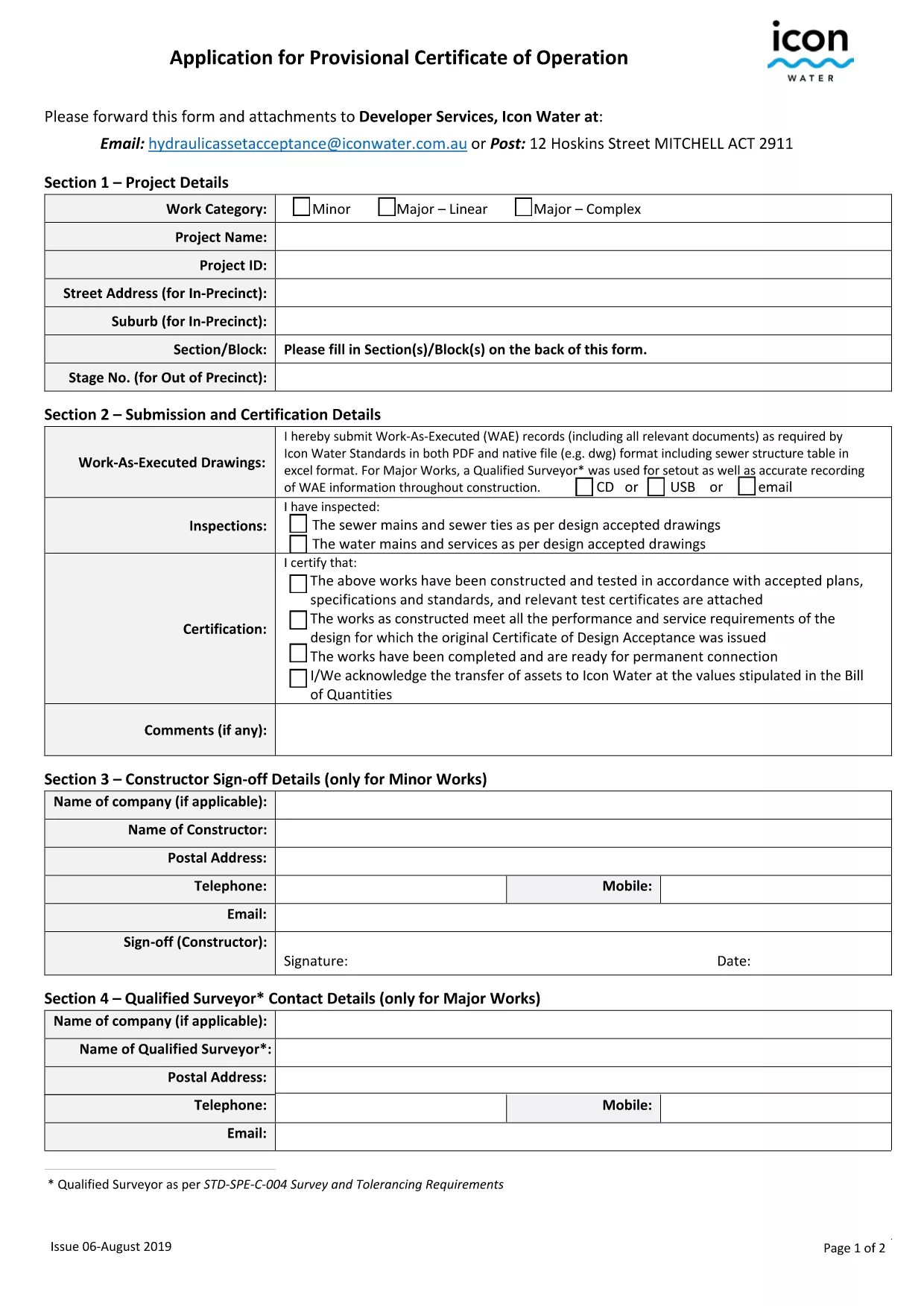
Provisional Acceptance Application Form – Fillable PDF

  1. Kalba Anglų
  2. Šalis JAV
  3. Veikla Imigracija
  4. skyrius USCIS
Provisional Acceptance Application Form – Fillable PDF

Many organizations—schools, immigration agencies, and licensing bodies—issue a provisional acceptance before granting final approval. The Provisional Acceptance Application Form captures essential details, confirms your eligibility, and starts the review process.

What Is a Provisional Acceptance Form?

This fillable PDF is an official document used by U.S. government agencies such as USCIS to record that your application has passed an initial review and is pending final approval. It typically asks for personal information, supporting document references, and a declaration of truthfulness.

How to Fill the Form Using Formize PDF Filler

Instead of downloading the PDF and opening it in a desktop editor, simply click the "Fill out this form" button below. The Formize PDF Filler app loads in your browser, letting you complete the form instantly.

  • Step 1: Click the button and wait for the Formize interface to appear.
  • Step 2: Enter your details in each field. The filler validates dates, numbers, and required fields in real time.
  • Step 3: Upload any supporting documents if the form requests them.
  • Step 4: Review the completed form, then click Submit or Download for your records.

Common Mistakes to Avoid

  • Leaving required fields blank – the filler will highlight missing information.
  • Entering mismatched dates (e.g., birth date after issue date).
  • Uploading files in unsupported formats – stick to PDF, JPG, or PNG.
  • Not signing the form electronically before submission.

Where to Get Help and Additional Resources

If you need clarification, consult the USCIS official guidance or the FAQs below. The Formize platform provides a built‑in preview, so you can double‑check everything before you finalize.

DUK
  • What does "provisionally accepted" mean?

    It means the agency has reviewed your initial submission and determined that you meet the basic criteria. Final approval is still pending further verification.

  • Do I need to print the form after filling it online?

    No. You can submit the form electronically through the agency’s portal, or download a PDF copy for your records.

  • Can I edit the form after I submit it?

    Once submitted, the form is locked. If you need to make changes, contact the agency to request a new provisional acceptance form.

  • Is the Formize PDF Filler secure?

    Yes. All data is encrypted in transit, and the filler does not store your information on our servers after you close the session.

  • What if I make a mistake while filling the form?

    Use the "Back" button in the filler to correct any field before you finalize. If you’ve already submitted, follow the agency’s instructions for corrections.

  • Do I need a digital signature?

    Most provisional acceptance forms require an electronic signature. The Formize filler includes a simple signature tool.

  • Which browsers are supported?

    The filler works on all modern browsers—Chrome, Firefox, Edge, and Safari.

  • Is there a file size limit for uploaded documents?

    Yes, each uploaded file must be under 10 MB. Larger files should be compressed before uploading.

  • Can I save my progress and finish later?

    The filler does not currently support saving progress. Complete the form in one session or download a draft copy.

  • Where can I find the official USCIS instructions?

    Visit the USCIS page for the specific form at uscis.gov/forms/i-539.

KAIP

Kaip nemokamai užpildyti provisional acceptance form internete, atlikdami 5 paprastus veiksmus:

  1. 1
    Open the Form
    Click the "Fill out this form" button on this page. The Formize PDF Filler loads directly in your browser.
  2. 2
    Enter Your Information
    Type your name, address, case number, and any other required details. Real‑time validation will highlight any errors.
  3. 3
    Upload Supporting Documents
    If the form asks for additional files (e.g., passport copy), click the upload icon and select PDF, JPG, or PNG files.
  4. 4
    Review and Sign
    Use the preview pane to ensure all fields are complete. Add an electronic signature in the designated box.
  5. 5
    Submit or Download
    When everything looks correct, click "Submit" to send the form to the agency or "Download" to save a copy for your records.
Formuokite PDF užpildymo programą
APIE

provisional acceptance form šabloną

Naudodami tradicinį PDF dokumento peržiūros ir pildymo funkcijų rinkinį, žiniatinklio programos pranašumus ir interaktyvų išdėstymą, galite užbaigti provisional acceptance form per kelias minutes.

FUNKCIJOS

PDF užpildas

Lengviausias būdas užpildyti provisional acceptance form internete

  • Greitai užpildykite provisional acceptance form
    Ieškote būdo greitai užpildyti provisional acceptance form internete? Naudodami internetinį nemokamą PDF formų užpildą sužinosite, kaip redaguoti ir užpildyti šį pdf dokumentą greičiau nei per minutę.
  • Lengva naudoti internetinį PDF redaktorių
    Atsibodo spausdinti PDF failus, kad galėtumėte juos redaguoti prieš nuskaitydami iš naujo ir siųsdami atgal? Redaguoti PDF dokumentus internete nemokamai. Norėdami sutaupyti laiko ir popieriaus, naudokite mūsų internetinį pdf redaktorių.
  • Puikūs įrankiai, visos platformos
    Svarstote, kaip užpildyti provisional acceptance form „Mac“ kompiuteryje, o gal kaip nemokamai naudoti PDF užpildą? Mūsų internetiniai PDF įrankiai veikia visose platformose.
  • Saugi failų saugykla
    Užbaigti „provisional acceptance form“ failai saugomi saugioje duomenų bazėje, kurią valdo „Amazon Cloud“ priegloba. Galite bet kada ištrinti failus iš mūsų sistemos. Bet kokiu atveju šie failai automatiškai ištrinami po 24 valandų.
  • Kalbėkitės su provisional acceptance form
    Kalbėkite su „provisional acceptance form“ naudodami Chatize, kuri yra nemokama PDF skaitymo priemonė. Užduokite klausimų ir gaukite atsakymus iš „provisional acceptance form“. Tiesiog spustelėkite aukščiau esantį mygtuką Kalbėtis su dokumentu.

Ištrinti užpildymo seansą

Ištrinti pasirinktą pildymo seansą? Tokiu atveju jūsų pažanga pildant formą bus prarasta.

Ištrinti redagavimo sesiją

Ištrinti pasirinktą redagavimo sesiją? Tokiu atveju jūsų pažanga kuriant ir redaguojant formą bus prarasta.