Selecteer taal

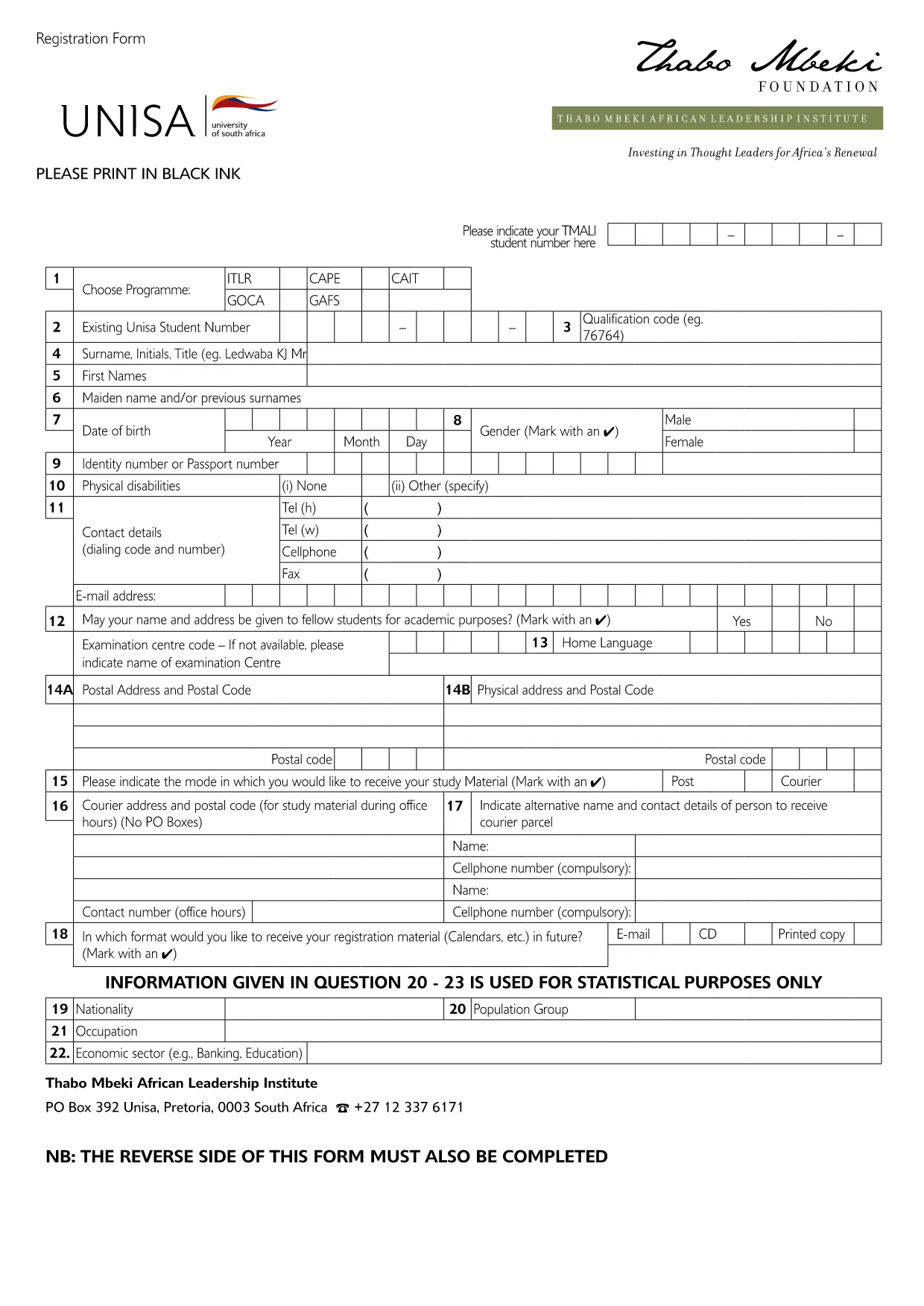
UNISA Application Form – Fillable PDF Online

  1. Land South Africa
  2. Taal Engels
  3. Activiteit Higher Education
  4. Afdeling Education
UNISA Application Form – Fillable PDF Online

Looking for the official UNISA application form for the 2027/2028 academic year? You’re in the right place. Our page offers a direct download of the fillable PDF and an instant online editor powered by Formize, so you can complete, save, and print the form without any extra software.

Why Use the Online Fillable UNISA Form

Filling out the UNISA registration PDF on paper can be time‑consuming and prone to errors. By using the online Formize PDF Filler you get:

  • Instant loading – no need to install a PDF editor.
  • Auto‑save while you type, preventing data loss.
  • Clear validation messages to avoid common mistakes.
  • One‑click download of the completed PDF for printing or electronic submission.

How to Complete the UNISA Application Form

Follow these simple steps to finish your application:

  1. Click the "Fill out this form" button below.
  2. Wait a few seconds while the Formize PDF Filler loads the UNISA application PDF.
  3. Review the pre‑filled sections (e.g., form title, instructions).
  4. Enter your personal details, academic history, and program choice.
  5. Upload supporting documents where required (optional – you can attach them later when submitting).
  6. Click Save to store a copy in your browser, then Download the completed PDF.
  7. Submit the saved PDF to UNISA via their online portal or by email as instructed on the form.

Required Documents and Common Mistakes

Before you start, gather the following documents to avoid delays:

  • Valid South African ID or passport (for international applicants).
  • Certified copies of your school qualification (e.g., National Senior Certificate).
  • Official tertiary academic records, if you have prior study.
  • Marriage certificate or divorce decree, if applicable.
  • Sworn translations for any non‑English documents.

Common mistakes to avoid:

  • Leaving mandatory fields blank – the filler will highlight them.
  • Using informal abbreviations (e.g., "St" instead of "Street").
  • Uploading non‑certified copies of required documents.
  • Submitting the form after the UNISA deadline.

Submit Your Application and Next Steps

Once you have downloaded the completed PDF, log in to the UNISA official portal and follow their submission guidelines. After submission, you will receive a confirmation email with a reference number. Keep this number handy for future correspondence.

Need help? Review the FAQs below or contact UNISA directly using the contact details on their website.

FAQ
  • Is the UNISA application form free to download?

    Yes, the PDF is provided at no cost. You can download and fill it online using Formize for free.

  • Can I edit the form after I have downloaded it?

    Absolutely. The Formize PDF Filler lets you make changes at any time before you save and download the final version.

  • What file format will I receive after completing the form?

    You will receive a standard fillable PDF that can be printed or submitted electronically.

  • Do I need Adobe Acrobat to fill the UNISA form?

    No. The Formize online filler works in any modern browser, so no additional software is required.

  • How do I know if my application has been accepted?

    After you submit the completed PDF through UNISA’s portal, you will receive a confirmation email with a reference number.

  • What if I make a mistake while filling the form?

    You can edit any field until you click the final "Download" button. Use the "Undo" option or simply re‑type the correct information.

  • Are there any size limits for uploaded supporting documents?

    UNISA typically allows files up to 5 MB each. Check the specific program’s guidelines for exact limits.

  • Can I save my progress and return later?

    Yes. Click the "Save" button to store a copy in your browser. When you return, click "Load" to continue where you left off.

HOE

Zo vult u UNISA application form gratis online in in 5 eenvoudige stappen:

  1. 1
    Click the Fill‑out Button
    Press the "Fill out this form" button on the page to launch the Formize PDF Filler.
  2. 2
    Wait for the PDF Filler to Load
    The fillable UNISA application PDF will appear in the browser within a few seconds.
  3. 3
    Enter Your Details
    Complete each required field, following the on‑screen prompts and validation messages.
  4. 4
    Save and Download
    Click "Save" to store your progress, then click "Download" to get the finished PDF.
  5. 5
    Submit to UNISA
    Upload the downloaded PDF via the UNISA online portal or send it by email as instructed.
Formize PDF Filler-app
WAT BETREFT

UNISA application form-sjabloon

Met de traditionele set functies voor het bekijken en invullen van een PDF-document, gecombineerd met de voordelen van een webapplicatie en responsieve lay-out, kunt u UNISA application form binnen enkele minuten voltooien.

FUNCTIES

PDF-vuller

De eenvoudigste manier om online PDF-formulieren in te vullen

  • Vul snel UNISA application form in
    Op zoek naar een manier om UNISA application form snel online in te vullen? Met onze online gratis PDF-formulierinvuller weet u hoe u dit pdf-document in minder dan een minuut kunt bewerken en invullen.
  • Gebruiksvriendelijke online PDF-editor
    Ben je het beu om PDF-bestanden uit te printen zodat je ze kunt bewerken, voordat je ze opnieuw scant en terugstuurt? Bewerk PDF-documenten gratis online. Gebruik onze online pdf-editor om tijd en papier te besparen.
  • Geweldige tools, alle platforms
    Vraagt ​​u zich af hoe u UNISA application form op een Mac moet invullen, of misschien hoe u gratis een PDF-filler kunt gebruiken? Onze online pdf-tools werken op alle platformen.
  • Veilige bestandsopslag
    Voltooide "UNISA application form"-bestanden worden opgeslagen in een beveiligde database die wordt beheerd door Amazon Cloud hosting. U kunt uw bestanden op elk moment uit ons systeem verwijderen. Deze bestanden worden in ieder geval na 24 uur automatisch verwijderd.
  • Chat met {trefwoord}
    Chat met "UNISA application form" op Chatize, een gratis PDF-lezerassistent. Stel vragen en krijg antwoorden van "UNISA application form". Klik gewoon op de knop Chatten met document hierboven.

De vulsessie verwijderen

De geselecteerde vulsessie verwijderen? In dat geval gaat uw voortgang bij het invullen van het formulier verloren.

Bewerkingssessie verwijderen

De geselecteerde bewerkingssessie verwijderen? In dit geval gaat uw voortgang bij het maken en bewerken van het formulier verloren.