Selecione o idioma

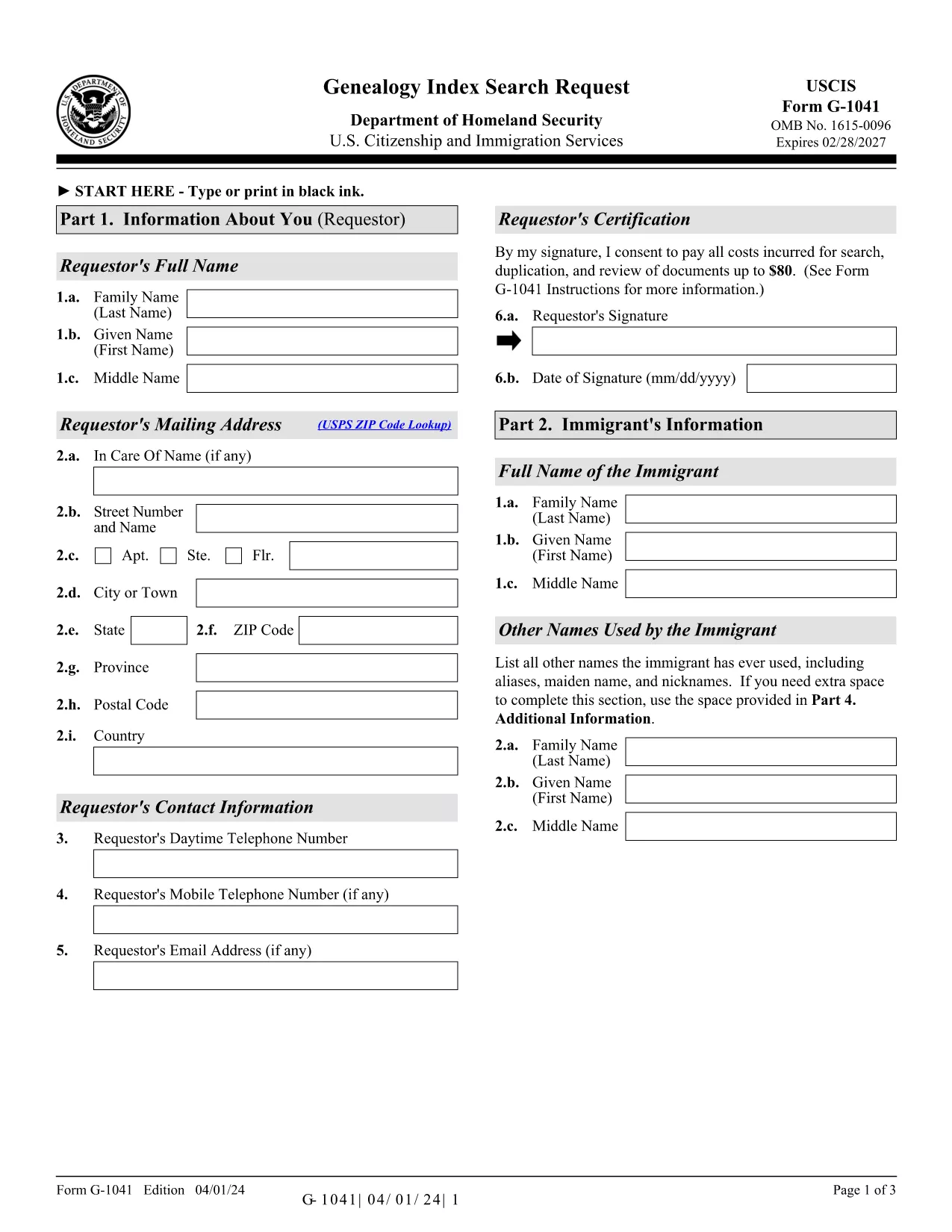
USCIS Form G-1041 – Genealogy Index Search Request (Fillable PDF)

  1. País EUA
  2. Linguagem Inglês
  3. Departamento Serviços de Cidadania e Imigração dos Estados Unidos
USCIS Form G-1041 – Genealogy Index Search Request (Fillable PDF)

Form G-1041, the Genealogy Index Search Request, is the official USCIS form used to ask the agency to search its historical immigration records for a specific ancestor. This form is essential for anyone researching family history, preparing a citizenship application, or seeking proof of a relative’s immigration status.

The form is available as a fillable PDF that you can complete directly in your browser with Formize’s PDF Filler. No extra software is required – simply click the “Fill out this form” button, wait for the Formize app to load, and start entering your information.

Below you will find step‑by‑step instructions, helpful tips, and answers to the most common questions about Form G-1041.

Key features of the fillable G-1041 PDF:

  • All fields are interactive – you can type, select dates, and add check marks.
  • Automatic validation helps prevent common errors before you submit.
  • Electronic signature option saves you a trip to the printer.
  • Secure download of the official USCIS edition (04/01/24).

Remember to review the edition date at the bottom of each page; USCIS may reject forms that mix different editions.

PERGUNTAS FREQUENTES
  • What is the purpose of Form G‑1041?

    Form G‑1041 requests USCIS to search its historical immigration indices for a specific individual. It is used for genealogy research, citizenship applications, and proof of immigration status.

  • Can I file Form G‑1041 online?

    Yes. USCIS offers an online filing option through its Genealogy Program page. The fillable PDF on Formize can also be completed online and then submitted electronically if the online portal is available.

  • Do I need to pay a fee to submit G‑1041?

    A filing fee is required for the search request. Check the USCIS Fee Schedule for the current amount and payment methods (credit/debit card, ACH, or prepaid card).

  • What supporting documents should I include?

    Include any evidence that helps identify the ancestor: death certificate (if under 100 years old), obituaries, gravestone photos, church records, or Social Security Death Index entries.

  • How long does USCIS take to respond?

    Response times vary, but USCIS typically replies within 30‑45 days after receiving a complete request and payment.

  • Can I sign the form with a handwritten signature?

    Yes, you may print, sign, and scan the form. However, the electronic signature option in Formize is faster and accepted by USCIS.

  • What edition of Form G‑1041 should I use?

    Always use the latest edition posted on the USCIS website. The current edition date is 04/01/24 and appears at the bottom of each page of the PDF.

  • Do I need to submit original documents?

    Only submit originals if USCIS specifically requests them. Otherwise, provide clear photocopies or digital scans along with certified English translations if needed.

  • Where do I mail the completed form?

    Mail the completed form, supporting documents, and payment to: USCIS Attn: Genealogy Program, P.O. Box 805925, Chicago, IL 60680‑4188.

  • What if I make a mistake after submitting?

    Contact the USCIS Genealogy Program as soon as possible. You may need to submit a corrected form with a brief explanation of the error.

COMO

Como preencher G-1041 gratuitamente, online em 5 etapas fáceis:

  1. 1
    Click the Fill‑out Button
    On the Formize page, locate the bright “Fill out this form” button and click it. This launches the Formize PDF Filler in a new window.
  2. 2
    Wait for the PDF Filler to Load
    The Formize app loads the official G‑1041 PDF. A loading bar will appear; wait a few seconds for all fields to become interactive.
  3. 3
    Enter Your Information
    Fill in each required field: personal details, ancestor’s name, dates, and supporting evidence. Use the drop‑down menus and date pickers where available.
  4. 4
    Review and Sign Electronically
    Double‑check the entered data for accuracy. When you’re satisfied, use the electronic signature field to sign the form.
  5. 5
    Submit or Download the Completed Form
    You can either submit the completed PDF directly to USCIS through their online portal (if available) or download the signed PDF to mail it to the Chicago Lockbox.
Aplicativo Formize PDF Filler
SOBRE

modelo G-1041

Com o conjunto tradicional de recursos para visualizar e preencher um documento PDF, combinado com os benefícios de um aplicativo da web e layout responsivo, você pode preencher G-1041 em minutos.

RECURSOS

Preenchimento de PDF

A maneira mais fácil de preencher formulários PDF online

  • Preencha G-1041 rapidamente
    Procurando uma maneira de preencher rapidamente G-1041 online? Com nosso preenchedor de formulário PDF online gratuito, você saberá como editar e preencher este documento PDF em menos de um minuto.
  • Editor de PDF online fácil de usar
    Cansado de imprimir arquivos PDF para poder editá-los antes de digitalizá-los novamente e enviá-los de volta? Edite documentos PDF gratuitamente online. Use nosso editor de PDF online para economizar tempo e papel.
  • Ótimas ferramentas, todas as plataformas
    Quer saber como preencher G-1041 em um Mac, ou talvez como usar um preenchimento de PDF grátis? Nossas ferramentas online de PDF funcionam em todas as plataformas.
  • Armazenamento seguro de arquivos
    Os arquivos "G-1041" concluídos são armazenados em um banco de dados seguro gerenciado pela hospedagem Amazon Cloud. Você pode excluir seus arquivos do nosso sistema a qualquer momento. Em qualquer caso, esses arquivos são excluídos automaticamente após 24 horas.
  • Converse com {palavra-chave}
    Converse com "G-1041" no Chatize, que é um assistente gratuito de leitura de PDF. Faça perguntas e obtenha respostas de "G-1041". Basta clicar no botão Bate-papo com documento acima.

Excluir sessão de preenchimento

Excluir a sessão de preenchimento selecionada? Nesse caso, seu progresso no preenchimento do formulário será perdido.

Excluir sessão de edição

Excluir a sessão de edição selecionada? Neste caso, o seu progresso na criação e edição do formulário será perdido.