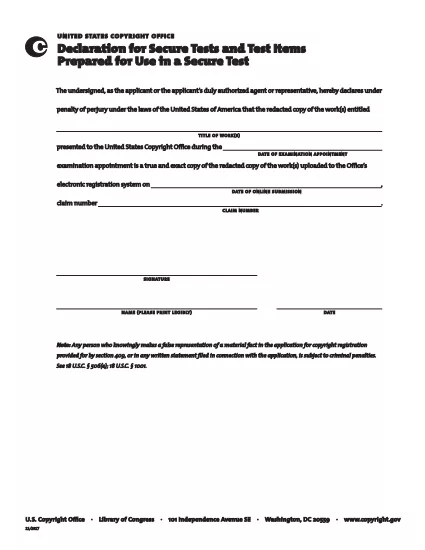
The Secure Test Declaration is a legally‑required statement used by the United States Copyright Office to certify that a test item is protected and will be handled securely. Our fillable PDF version lets you complete the form quickly, accurately, and without installing any extra software.
With Formize’s integrated PDF Filler, you can open the document directly in your browser, enter the required information, and save or print a certified copy. This eliminates the hassle of downloading, editing, and re‑uploading static PDFs.
Below you’ll find a brief overview of the form’s sections, tips for avoiding common errors, and step‑by‑step instructions for completing the declaration online.
What Is a Secure Test Declaration?
A Secure Test Declaration confirms that the test material you are submitting is confidential, that you have the authority to submit it, and that you understand the penalties for false statements. It is commonly required for copyrighted works that involve proprietary testing methods or confidential data.
Key Sections of the Form
- Applicant Information – Name, address, and contact details.
- Test Description – Title, purpose, and nature of the test.
- Security Measures – How the test will be protected.
- Declaration Statement – Signature line confirming truthfulness.
How to Fill Out the Secure Test Declaration Online
Instead of downloading the PDF and opening it in a separate editor, simply click the "Fill out this form" button on this page. The Formize PDF Filler app will load automatically, allowing you to complete every field directly in your browser.
Common Mistakes to Avoid
- Leaving required fields blank – the filler will highlight missing information.
- Using an unofficial signature image – type your name in the signature field for a legally accepted electronic signature.
- Submitting outdated contact details – double‑check phone numbers and email addresses before saving.
Where to Submit the Completed Form
After saving the completed declaration, you can either:
- Upload the PDF through the Copyright Office’s online portal.
- Print, sign physically (if required), and mail it to the address listed on the form.
For most users, the electronic submission option is faster and provides immediate confirmation of receipt.